



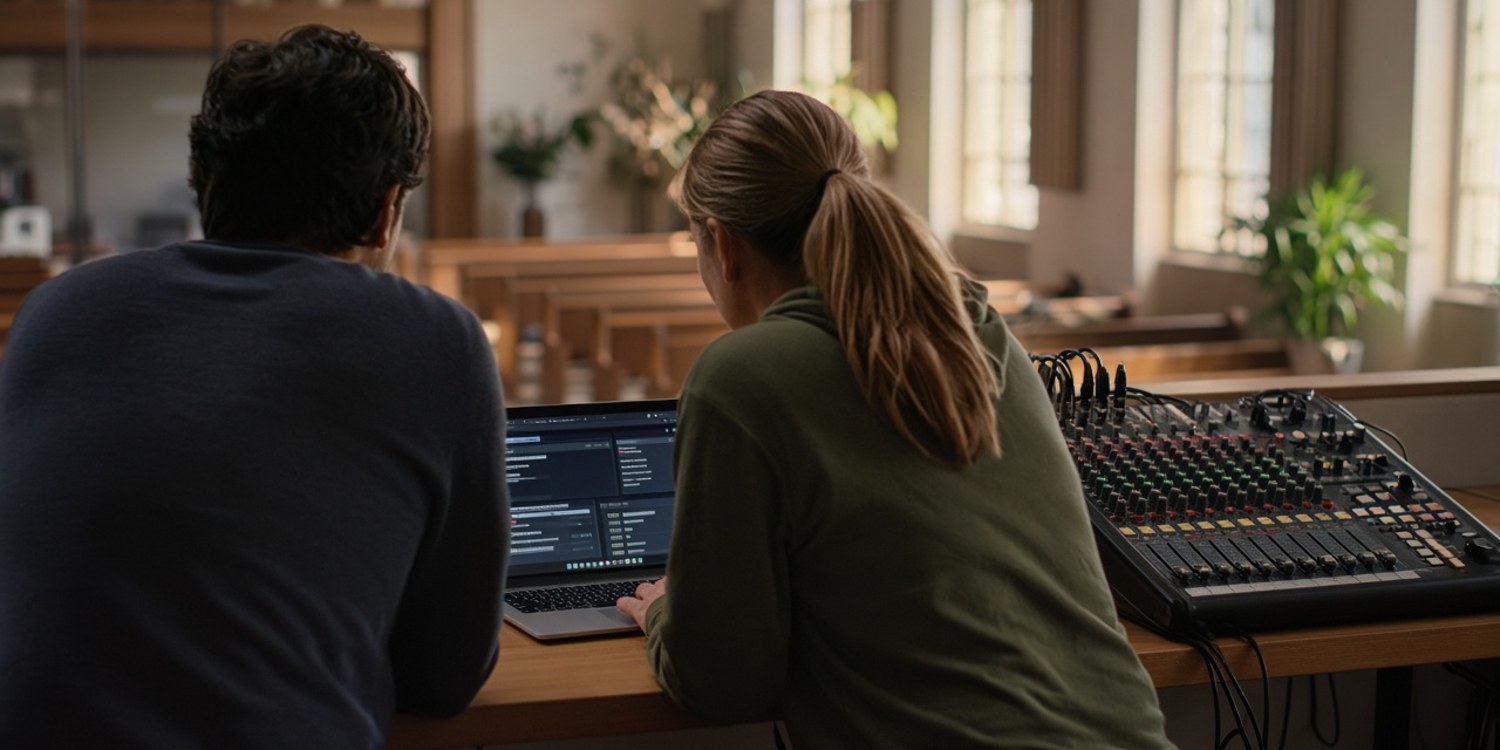
The service starts in twelve minutes and the screen is black.
Nobody is at their best at that moment. The person at the computer starts clicking everything. The pastor walks over to ask. Someone suggests restarting. In a few minutes the situation is worse than it was.
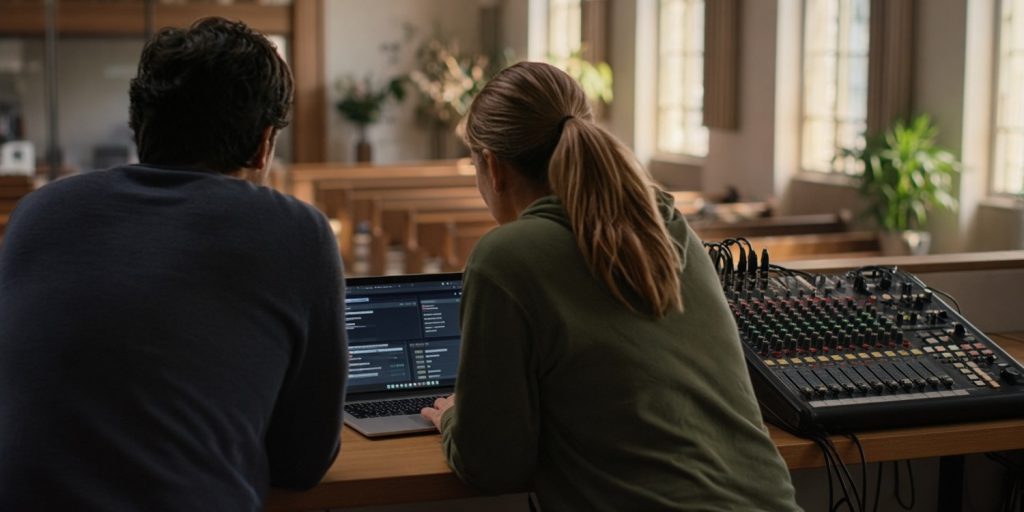
This article is for that moment. It is a short plan for what to do when the tech fails, built from the vendor documentation behind our troubleshooting series. The first half is a way of working. The second half is a lookup table of symptoms and first checks. The way of working is our suggestion, based on common sense, not on a vendor page. The fixes in the table come from Microsoft, Renewed Vision, vMix and OBS.
Rule 1: decide who is in charge
One person decides. In a booth, that is the media coordinator or the most experienced operator on duty. Everyone else gives information. Without that, three people try three fixes at once, and nobody knows which one worked.
Rule 2: change one thing at a time
If you change the cable, the display setting and the software together, and the picture comes back, you do not know what fixed it. And if it fails again, you cannot fix it again. One change, one look.
Rule 3: work from the outside in
Check the physical things first, then the operating system, then the software.
- Is it powered on, and is the cable seated?
- Is the projector on the right input?
- Does the computer see the display?
- Does the software send to the right output?
This order is the one Microsoft and Renewed Vision follow in their own guides, and it finds most problems at step 1 or 2.
Rule 4: have a plan B before you need one
Decide, in advance, what the congregation will see if the screens do not come back. A paper song sheet, a spoken announcement, a song everybody knows. Plan B is not a defeat. It is what lets the service start on time while one person fixes the problem calmly.
Symptom, first check, where to read more
| What you see | First check | Guide |
|---|---|---|
| Projector says "No signal" | Windows key and P: is it PC screen only? Then cable and input. | No signal |
| ProPresenter audience screen is black | Is the Audience screen assigned to a connected output, and switched on? Restart ProPresenter after display changes. | Black audience screen |
| PowerPoint shows notes to the congregation | Use the swap option in Presenter View's display settings. | Presenter View |
| Video is a black box in the slide show | Format: convert to MP4 with H.264 and AAC. | Video not playing |
| Lyrics missing from the stream | Test NDI Studio Monitor on the streaming computer. | ProPresenter NDI |
| vMix input is blank | Network profile Private, Wi-Fi off, firewall allowed. | Blank NDI in vMix |
| vMix stutters or shows a red warning | Turn off recording and streaming, then close inputs one at a time. | vMix performance |
| OBS reports dropped, skipped or missed frames | Read the Stats window: network, encoder or rendering. | OBS frames |
A simple timeline
Time pressure changes what is sensible. This is our suggestion for a service that starts at a fixed time.
- More than 15 minutes before: troubleshoot normally, one change at a time.
- About 10 minutes before: tell the leader what is wrong and how long you need. Decide whether plan B is likely.
- Around 5 minutes before: stop experimenting. If the screens are not back, switch to plan B and keep working on the fix quietly.
- During the service: do not change anything that is working. Fix the failed part only at a natural pause, such as a prayer or a reading.
The point of the timeline is that the leader is never surprised. A leader who hears "the screen may not work" ten minutes before can adjust the order of service. A leader who finds out at the first song cannot.
What to say to the congregation
If the problem is visible, say little. A short, calm sentence is better than an apology that draws attention to the failure: "We'll sing this one without the words on the screen." People tend to forgive a technical issue that is handled well, and to remember a panic.
If the stream is affected, a short message to online viewers is better than silence. Say that you have a technical problem and are working on it, then post an update when it is fixed.
When the problem is not the tech
Sometimes the equipment is fine and the person is missing. The only operator who understands the ProPresenter set-up is ill, and the volunteer who replaces them has never seen it. This is a scheduling problem dressed as a technical one.
You cannot fix that on Sunday morning. You can only reduce the chance of it, by finding out early. That means asking for confirmation days ahead, not on the day, and knowing who else can cover each position. Our guide to a last-minute volunteer cancellation plan covers that side.
After the service
- Write down what failed, what you tried and what worked.
- Tell the media coordinator, even if the fix was small.
- Add the check to your preflight checklist, so that the next person finds it before the service.
A problem that happens once and is written down is a lesson. A problem that happens twice without a note is a habit.
How Planify can help
Technical failures are easier to survive when the right person is there.
- Positions with a coordinator. Stream operator, presentation and sound each have a coordinator and a minimum and maximum number of people.
- Confirmation by tap. Volunteers confirm or decline on WhatsApp, so you see gaps early in the week.
- Cover from the same position. If someone declines, Planify can ask colleagues who cover that position, so a colleague with the right skills is asked first.
- Unavailability. Periods when people are away are respected by the planner, open calls and cover requests.
Which features you get depends on your plan.
Read next: media team scheduling: why sound, cameras and slides can't be swapped.
FAQ
What should I do first when the screen goes black?
Check the physical path before the software: power, cable and the projector's input. Then check that the computer sees the display.
Should I restart the computer?
Restart only when you know what you are fixing. With ProPresenter, Renewed Vision says to restart the program after changing displays, which is different from rebooting everything.
How do I keep the service on time while we fix it?
Have a plan B that does not need the screens, and tell the leader early.
Who should lead the fix?
One person: the media coordinator or the most experienced operator on duty.
How do we avoid the same problem next week?
Write down the fix and add the check to your preflight list.