


The sermon slides are fine on the operator's laptop. On the big screen there is nothing but black. Or the lyrics appear on the laptop and the confidence monitor, but not in front of the congregation.
In ProPresenter this is almost always a screen configuration problem: the computer and the software disagree about which output is which. Renewed Vision, the maker of ProPresenter, documents the steps. This guide puts them in the order you would actually use them under pressure.
First, understand the two layers
There are two places where screens are set up, and both have to be right.
- The operating system decides which displays exist and how they are arranged.
- ProPresenter decides which of those displays is the Audience screen, which is the Stage screen, and what each one shows.
If the first layer is wrong, ProPresenter has nothing to send the picture to. If the second is wrong, the picture goes to the wrong place or nowhere.
Layer 1: the computer
On a Mac
Renewed Vision's instructions for Mac are to open the display settings in System Settings and make sure the extra screen is set up as an extended display, not as a mirror. After changing displays, restart ProPresenter.
Renewed Vision also points out that NDI and SDI outputs will not appear in the macOS display list. Only physical displays do.
On Windows
Use Microsoft's steps. Press the Windows key and P, and choose Extend. In Settings, under System and Display, the Multiple displays section has Detect and Identify buttons. Identify puts a number on each screen so you know which is which. If the projector is not listed, check the cable, the power and the input selected on the projector or TV.
If your Windows laptop has both an integrated and a dedicated graphics card, Renewed Vision's guide says to set ProPresenter to High performance in the Windows graphics settings and then restart ProPresenter. It also recommends keeping the graphics drivers up to date, with NVIDIA's Game Ready driver or AMD's Adrenalin driver.
Layer 2: ProPresenter
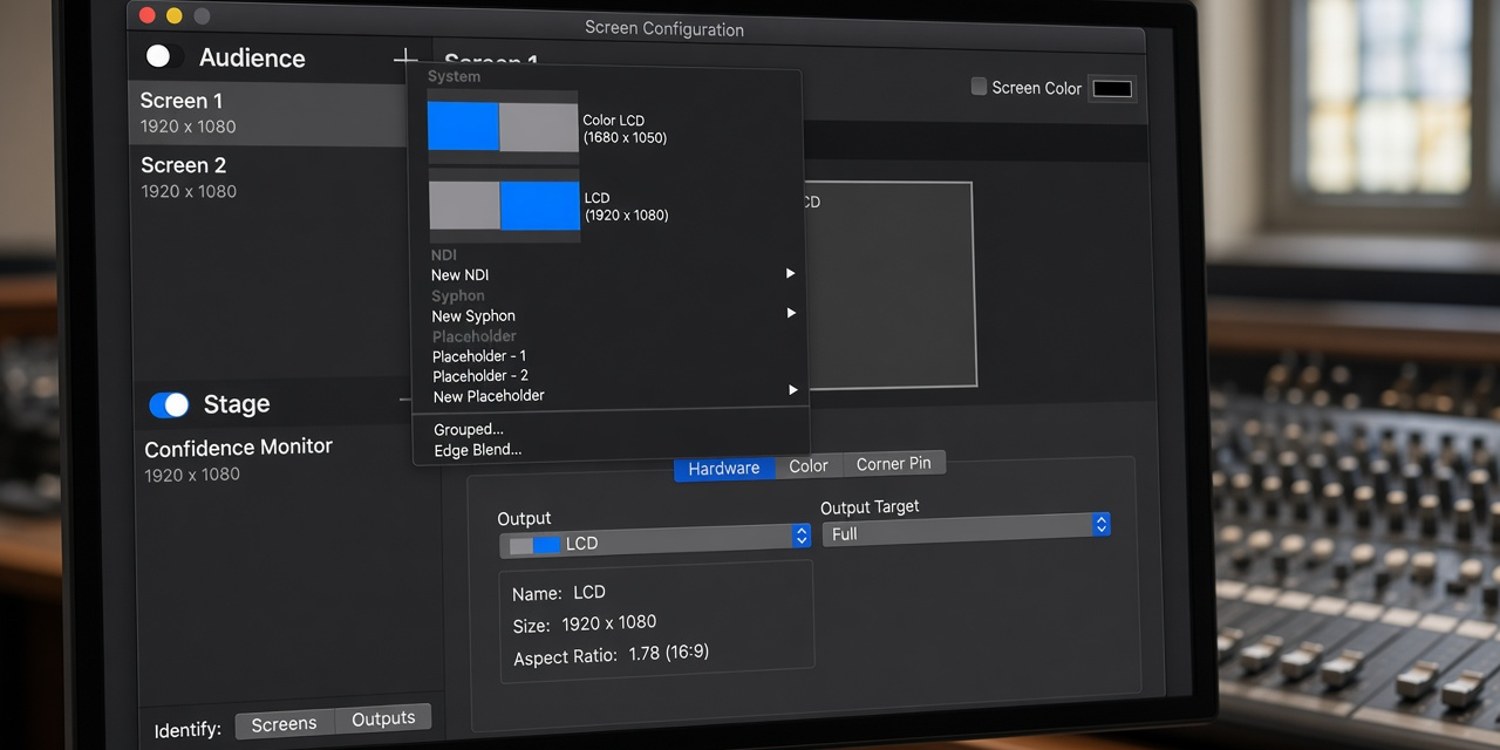
In ProPresenter, open the Screens menu and choose Configure Screens. On a Mac the shortcut is Option-Command-1.
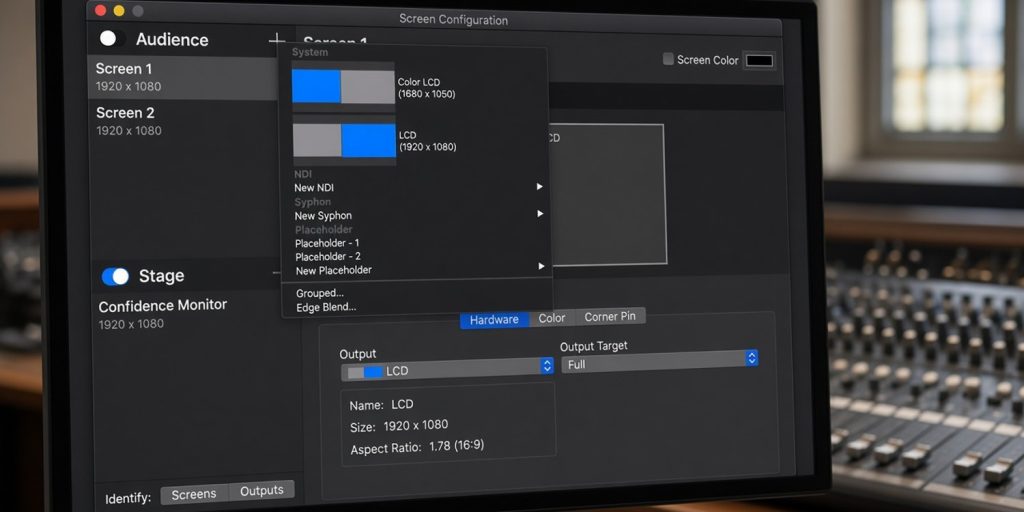
Renewed Vision's screen configuration guide describes what you will see:
- An Audience screen is what the congregation sees. A Stage screen is the confidence monitor for the people on stage.
- The + button lists the available outputs: system outputs (physical displays), NDI, SDI, Syphon (Mac only) and a Placeholder.
- Screen types include Single, Mirror, Grouped and Edge Blend.
- The Hardware tab has an Output dropdown, where you choose which output the screen uses.
If the Audience screen has no output assigned, or the assigned output is not connected, the audience sees nothing. Pick the right output from the dropdown.
The ProPresenter user guide also shows an on and off indicator for the Audience and Stage screens, shown in green when on. It has Identify Screens and Identify Outputs buttons as well, which help to match the names in the software with the real displays.
The checklist, in order
| Step | Check |
|---|---|
| 1 | Is the projector or TV powered on and set to the right input? |
| 2 | Does the operating system show the second display? (Mac: Displays. Windows: Win+P, Detect, Identify.) |
| 3 | Is it set to extend, not mirror, unless you want mirroring? |
| 4 | Did you restart ProPresenter after changing displays? |
| 5 | In Configure Screens, is the Audience screen assigned to the right output? |
| 6 | Is the Audience output switched on (green)? |
| 7 | On Windows with two graphics cards, is ProPresenter set to High performance? |
| 8 | Are graphics drivers up to date? |
The restart in step 4 matters more than it seems. A church's published AV guide notes that ProPresenter reads the screen configuration when it starts, and that a Mac sometimes forgets its screen arrangement. Renewed Vision's own Mac instructions also say to restart ProPresenter after display changes.
A detail that looks like a bug
ProPresenter has an option, in Settings under Screens, called Show Performance Statistics On Screen. It draws statistics on the output. Renewed Vision's guide says to turn it off before presenting, so the congregation does not see technical numbers over the lyrics.
More than two outputs
If you need more than two outputs, Renewed Vision recommends video outputs, such as Blackmagic DeckLink or UltraStudio devices, instead of graphics outputs, and says a dedicated graphics card is needed. A laptop with its built-in graphics is the wrong tool for a production with several screens.
Four situations that look the same
A black Audience screen can have different causes. Based on the documentation above, these are the ones to think of first.
After someone unplugged the display. The computer lost the second screen, and when it came back the arrangement changed. Check the operating system first, then restart ProPresenter, since it reads the configuration at startup.
The display is mirrored. On a Mac, if the screen is mirrored rather than extended, ProPresenter and the operating system do not agree about what the second screen is. Use an extended display.
The Audience screen is assigned to NDI or SDI. These outputs do not appear in the macOS display list, and they do not draw anything on a projector. If the Audience screen is assigned to one of them, the projector will stay black. Check the Output dropdown in the Hardware tab.
The Audience output is off. The on and off indicator is easy to click by accident. Green means on.
Why not just mirror everything
Mirroring looks like the simple answer, since the same picture appears everywhere. But ProPresenter is designed to send different content to different screens: slides to the congregation, notes and clocks to the stage. Renewed Vision's own guidance for Mac is to use an extended display and let ProPresenter distribute the content. Mirroring gives up that control, and the operator ends up looking at the projector's picture, not at a screen of their own.
Prevent it next Sunday
Most Sunday-morning screen problems are not new faults. Someone plugged in a different cable, closed the laptop, or an update changed the display order. Do a screen check during the setup, before anyone arrives: identify the screens, confirm the Audience output, and show a test slide. For a full run-through, see our Sunday tech preflight checklist.
How Planify can help
A screen check only works if somebody does it.
- A position for the presentation operator. Give it a coordinator and a minimum and maximum number of people, so that a gap is visible in advance.
- Confirmation by tap. Volunteers confirm or decline on WhatsApp, so you find out about a missing operator before Sunday.
- Cover from the same position. If someone declines, Planify can ask colleagues who cover that position.
- Unavailability. Periods when people are away are respected by the planner, open calls and cover requests.
Which features you get depends on your plan.
Read next: media team scheduling: why sound, cameras and slides can't be swapped.
FAQ
Why is my ProPresenter audience screen black?
Usually the Audience screen is not assigned to a connected output, or the computer is not extending the desktop to the projector. Check the display settings first, then Configure Screens.
Where is Configure Screens in ProPresenter?
In the Screens menu. On a Mac, the shortcut is Option-Command-1.
Should I mirror or extend the display?
Renewed Vision's Mac instructions use an extended display. ProPresenter then decides what goes to each screen.
Do I need to restart ProPresenter after changing displays?
Renewed Vision says to restart it after display changes on a Mac, and a church AV guide notes that ProPresenter reads the screen setup at startup.
Why do I see numbers on the projector?
You may have Show Performance Statistics On Screen turned on in Settings. Turn it off before presenting.