



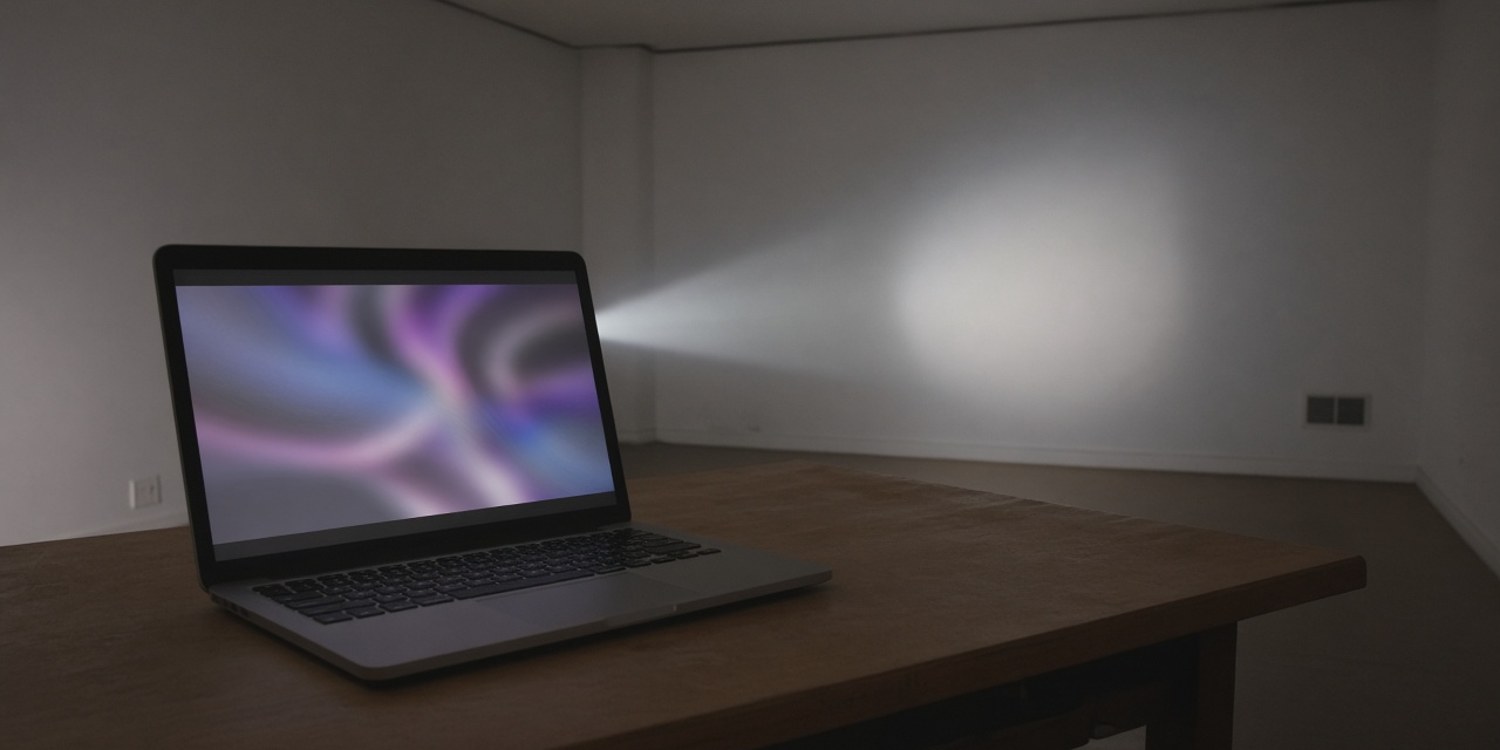
The video plays perfectly while you edit the slides. Then the service starts, the slide show runs on the projector, and the testimony video is a black rectangle. Or it plays with no sound. Or it freezes.
Video in PowerPoint fails for a small number of reasons: the file format, the way the file was added, and the way the slide show uses the second screen. This guide covers all three, using Microsoft Support's documentation, and marks clearly the fixes that come only from community answers.
Step 1: check the file format
Microsoft recommends .mp4 files encoded with H.264 video and AAC audio, and .m4a for audio files. These work across current versions of PowerPoint on Windows and Mac.
Older formats are a common source of trouble. Microsoft says support for formats such as WMV, MPEG-2 and AVI is limited and has been deprecated, starting from version 2505 of PowerPoint for Microsoft 365. If a video in an older format will not play, Microsoft's advice is to convert it rather than to hunt for a missing codec.
Practical consequence: if a family sends a video from a phone, or someone downloads a clip, convert it to MP4 with H.264 before Sunday, and test it.
Step 2: use Optimize Compatibility
Microsoft documents a built-in tool. Under File and Info, a button called Optimize Compatibility appears when PowerPoint detects media that may not play on other computers. It converts the media to a format that works more widely. Microsoft warns that it removes embedded subtitles and alternate audio tracks, so keep a copy if you need those.
On Windows, Compress Media in the same place reduces the size of the video, with choices such as 1080p, 720p and 480p. Microsoft says this option is available only on Windows. Smaller files are easier on an older presentation computer.
For older videos, Microsoft also says that upgrading them updates the files, and embeds them in the newest format.
Step 3: bring the whole file
A presentation that plays on your laptop and fails on the church computer is a classic. The safest approach, combining Microsoft's advice above with common sense, is to convert the video to a supported format and then open the file on the computer that will run the service, with the projector connected, before anyone arrives.
Step 4: if it plays in the editor but not on the second screen
This is the most frustrating case, and Microsoft's own guidance is thin here. The following fixes come from Microsoft Q&A community answers, not official documentation. They have helped other users, but they are not guaranteed.
- Reset the monitor choice. On the Slide Show tab, set Monitor to the primary monitor, and then back to Automatic.
- Turn off hardware graphics acceleration. In File, Options, Advanced, under Display, tick both Disable hardware graphics acceleration and Disable Slide Show hardware graphics acceleration.
- Test with the second monitor disconnected. If the video plays on the laptop alone, the problem is in how PowerPoint is using the second display.
Try one change at a time, so you know which one worked. And if the video matters on Sunday, do not experiment during the service. Play it from a separate player instead.
Step 5: audio
This step is general troubleshooting, not taken from a Microsoft page. If the picture plays and there is no sound, check three things in order: the volume on the slide's video, the output device chosen in Windows, and whether the sound is going to the projector's HDMI or to the sound desk. A church often sends slide audio to the mixer, and the wrong output means silence in the room. That is a setup problem, not a PowerPoint fault.
Format cheat sheet
| Type | Microsoft's position |
|---|---|
| .mp4, H.264 video, AAC audio | Recommended for video |
| .m4a | Recommended for audio |
| WMV, MPEG-2, AVI | Limited support, deprecated from version 2505 |
| Anything else that will not play | Convert it, rather than looking for a codec |
If you only remember one line, remember the first one. A church that makes MP4 with H.264 its standard for every video, whoever sends it, removes the most common cause of video failures in one rule.
A test script that takes five minutes
Testing is only useful if it is the same every time. This is a short routine for the person who prepares the slides:
- Open the file on the church computer, not your own.
- Connect the projector, and start the slide show from the first slide.
- Go to every slide with a video, and play it with sound.
- Watch the whole first ten seconds of each video, not just the first frame, since some problems appear after the video starts.
- Note any video that fails, and replace it with a converted copy.
- Save the final file, and do not edit it again after the test.
The last point matters. A small change made after the test, such as inserting a new video on Saturday evening, is a new unverified change, and unverified changes are where Sunday surprises come from.
A quick table
| Symptom | Likely cause | First action |
|---|---|---|
| Black rectangle in slide show | Unsupported or old format | Convert to MP4, H.264, AAC |
| Plays on one PC, not another | Missing codec, or linked file | Optimize Compatibility, test on the target PC |
| Plays in editor, not on projector | Second-screen or graphics settings | Community fixes in step 4 |
| Subtitles or second audio track gone | Optimize Compatibility removed them | Keep an original copy |
| No sound | Wrong output device | Check Windows audio output |
Before Sunday
- Convert every video to MP4 with H.264 and AAC.
- Run the whole presentation on the church computer, with the projector connected.
- Play each video once, with the sound on.
- Keep a second copy of important videos outside PowerPoint.
Our Sunday tech preflight checklist turns this into a routine. If the slides appear on the wrong screen altogether, see PowerPoint Presenter View on the wrong screen.
How Planify can help
Testing media takes time, and somebody has to be there to do it.
- A position for the presentation operator, with a coordinator and a minimum and maximum number of people.
- Confirmation by tap. Volunteers confirm or decline on WhatsApp.
- Cover from the same position. If someone declines, Planify can ask colleagues who cover that position.
- Announcements to a position. Remind operators to send videos in advance.
Which features you get depends on your plan.
Read next: PowerPoint vs worship presentation software.
FAQ
What video format does PowerPoint recommend?
Microsoft recommends .mp4 files encoded with H.264 video and AAC audio, and .m4a for audio.
Why does my video not play on the projector?
The usual causes are an unsupported format, a missing codec on that computer, or the way the slide show uses the second display. Convert the video first, and test on the real computer.
What does Optimize Compatibility do?
It converts media to a format that plays more widely. Microsoft says it removes embedded subtitles and alternate audio tracks.
Is hardware graphics acceleration the problem?
It can be. Community answers on Microsoft Q&A suggest disabling it in the PowerPoint Advanced options, but this is not official guidance.
Does Compress Media work on a Mac?
Microsoft says Compress Media is available only on Windows.