


Most tech problems on Sunday morning are not surprises. A cable was moved, a laptop installed an update, a video came in the wrong format, the Wi-Fi came back on. They were waiting to be found, and the first person to find them was the congregation.
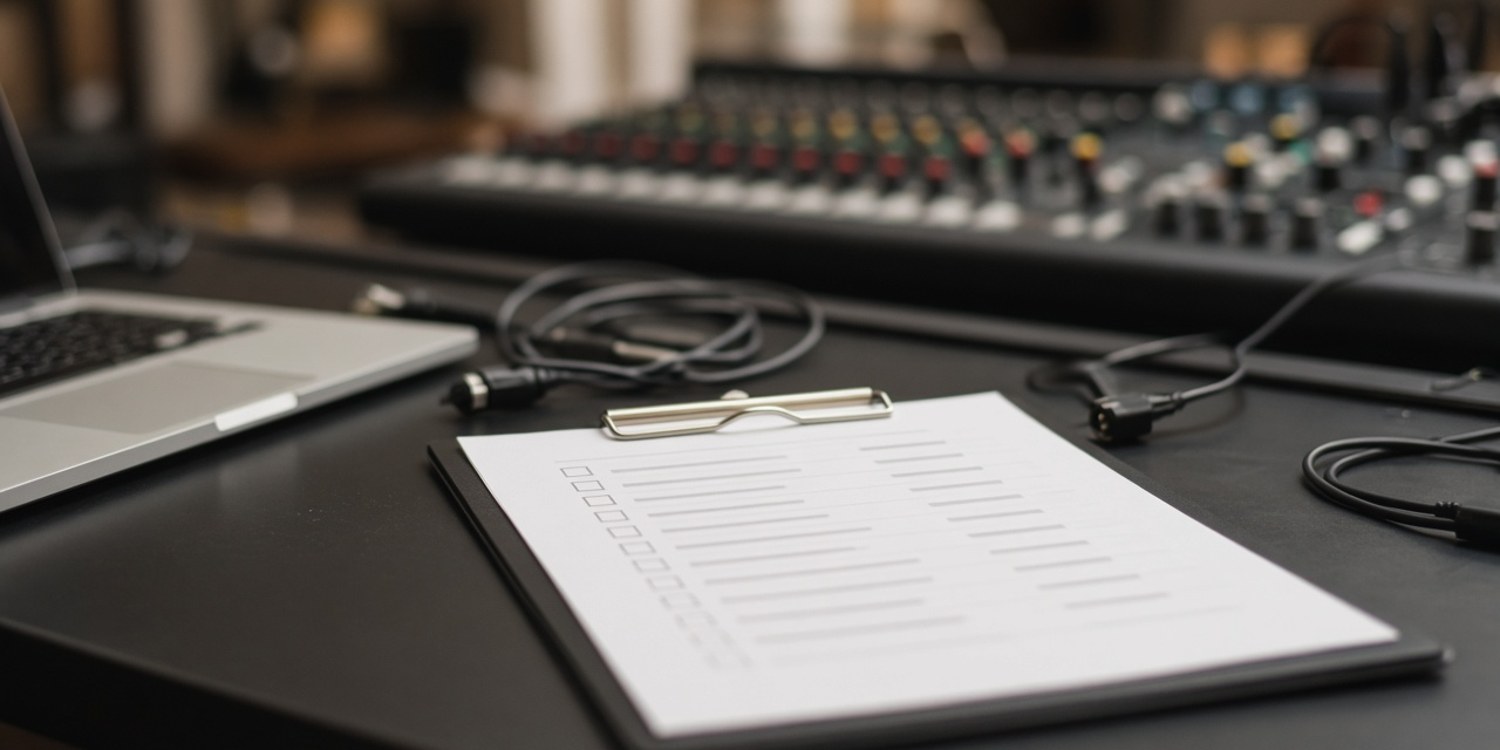
A preflight checklist is how you find them first. This one is built from the vendor documentation behind our troubleshooting series: Microsoft, Renewed Vision (ProPresenter), vMix, NDI and OBS. The timings and the grouping are our suggestion. The checks themselves come from those sources, and each links to the guide that explains it.
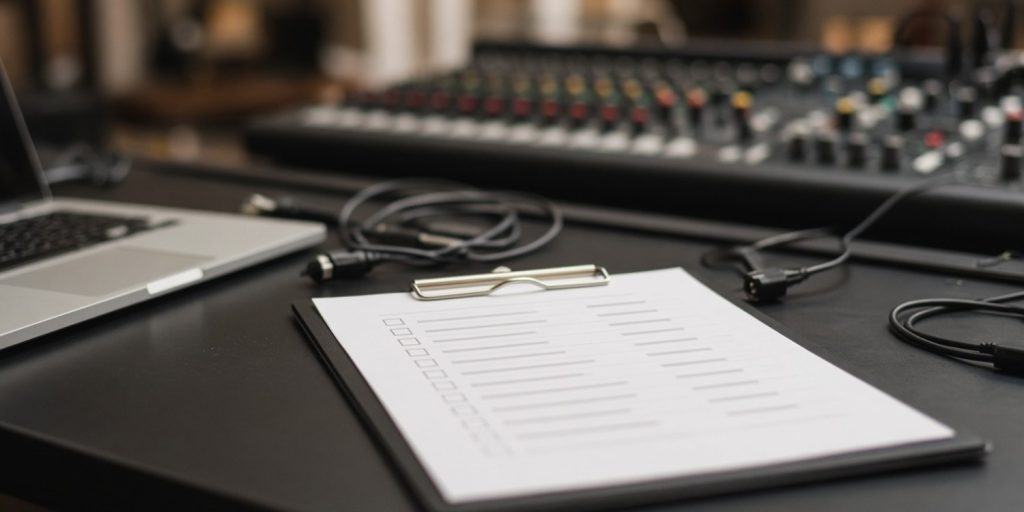
Why a checklist, not memory
The person who knows the setup best is rarely the person who is there every week. Volunteers rotate. A checklist lets someone who has never seen the booth run the same checks as the person who built it, and it moves the discovery of problems from the middle of the service to the hour before it.
The night before or early in the week
Do the things that take time and cannot be rushed.
- Convert videos. Microsoft recommends .mp4 with H.264 video and AAC audio for PowerPoint, and says older formats such as WMV and AVI have limited support. See video not playing on the projector.
- Open the presentation on the church computer, not on your own laptop. Play each video once, with sound.
- Update on a quiet day, not on Sunday. Renewed Vision recommends current graphics drivers for ProPresenter. A driver or software update on Saturday night is a risk; one on Tuesday is a test.
An hour before
Screens
- Projector on, right input selected, cable seated at both ends.
- On Windows, press the Windows key and P and confirm Extend or Duplicate, not PC screen only. See laptop to projector, no signal.
- In ProPresenter, open Configure Screens and confirm the Audience screen has the right output and is switched on. See ProPresenter audience screen black.
- In PowerPoint, start the slide show and check that the audience sees slides and the operator sees Presenter View. See Presenter View on the wrong screen.
- In ProPresenter, check that Show Performance Statistics On Screen is off.
Network and NDI
- Is Wi-Fi off on the computer that runs vMix? vMix says it should be on one network at a time.
- Is the Windows network profile set to Private on the NDI computers? See blank NDI inputs in vMix.
- Does NDI Studio Monitor show the lyrics source on the streaming computer? See ProPresenter NDI not showing.
Stream
- Is the stream computer wired, and is the bitrate about 75% of the measured upload speed?
- Run a short test stream with sound and movement before going live. YouTube's own guidance is to test before going live.
- In OBS, open the Stats window. In vMix, read the Render Time and CPU numbers: render time consistently above 20 ms, or total CPU above 70%, is a warning. See dropped frames in OBS and vMix performance.
- Is the laptop plugged in? vMix says NVIDIA graphics do not perform correctly on battery power.
Ten minutes before
- Show a test slide on every screen.
- Check that the confidence monitor shows what the stage needs.
- Put the presentation on the first slide, not the last one used.
- Make sure the operator knows who to call, and that they know where the spare cable is.
- Close other programs on the presentation and stream computers.
What the checklist does not cover
It does not replace a rehearsal. A checklist confirms that the equipment is connected and configured, while a run-through confirms that the people and the content work together: the slide appears when the song starts, the lyrics match the version the band plays, the sermon video comes in at the right moment. If your team can only do one, do the run-through, and use the checklist to prepare for it.
During the service
- One person watches the stream, and one person runs the slides, if the team allows it.
- If something goes wrong, change one thing at a time, and say what you changed.
After the service
- Note anything that nearly went wrong. A one-line message to the media coordinator is enough.
- Write down the fix, so that the next person does not start from zero.
Split the list by position
One long list is easy to skip. A short list for each position is easier to follow, because each person sees only what is theirs.
- Presentation operator: screens, Presenter View or Configure Screens, video test, performance statistics off.
- Stream operator: wired connection, bitrate, test stream, Stats window or render time and CPU.
- Network and NDI: Private profile, same subnet, Wi-Fi off, monitor test.
- Coordinator: confirms that each position has a person, and that the notes from last week were read.
Written this way, each person can finish their own list in a few minutes, and the coordinator only checks that all lists were done. If the church is small and one person has all roles, the same lists still work, one after another.
Keep the list alive
A checklist that never changes becomes a ritual that people tick without looking. When something fails, add the check that would have caught it. When a check never finds anything for months, ask whether the equipment or the process changed. The list should reflect your booth, not a template.
A copy of the list
| When | Check |
|---|---|
| Early in the week | Videos converted and tested on the church computer |
| One hour before | Screens, NDI, network, stream test |
| Ten minutes before | Test slide on every screen, first slide loaded |
| After | Note what nearly failed |
Who does the checklist
A checklist belongs to a position, not a person. If the preflight is the job of "the sound person", then on the Sunday that person is away, nobody does it. Put it in the description of the position, and the substitute inherits it.
How Planify can help
The checklist only works if someone is there to run it.
- Positions with a coordinator. The media department's positions, such as stream operator, presentation and sound, each have a coordinator and a minimum and maximum number of people.
- Confirmation by tap. Volunteers confirm or decline on WhatsApp, so you know earlier in the week.
- Cover from the same position. If someone declines, Planify can ask colleagues who cover that position.
- Announcements to a position. Send the preflight list to the people on the position before Sunday.
Which features you get depends on your plan.
Read next: what to do when the tech fails on Sunday morning.
FAQ
How early should the media team arrive?
That depends on your set-up and your team. The checks above are most useful when there is time to fix what they find, so give the setup its own slot before the rehearsal.
What should we test most carefully?
The things that depend on the church computer and the projector: video playback, screen assignment and the stream connection.
Should we update software before Sunday?
Update on a quiet day and test afterwards, so that problems appear before the service.
Who should run the checklist?
The person in the media position that week. Make it part of the position, not of one person's habits.
Is a printed checklist better than an app?
Either works. What matters is that it is in the booth, and that everyone uses the same one.