


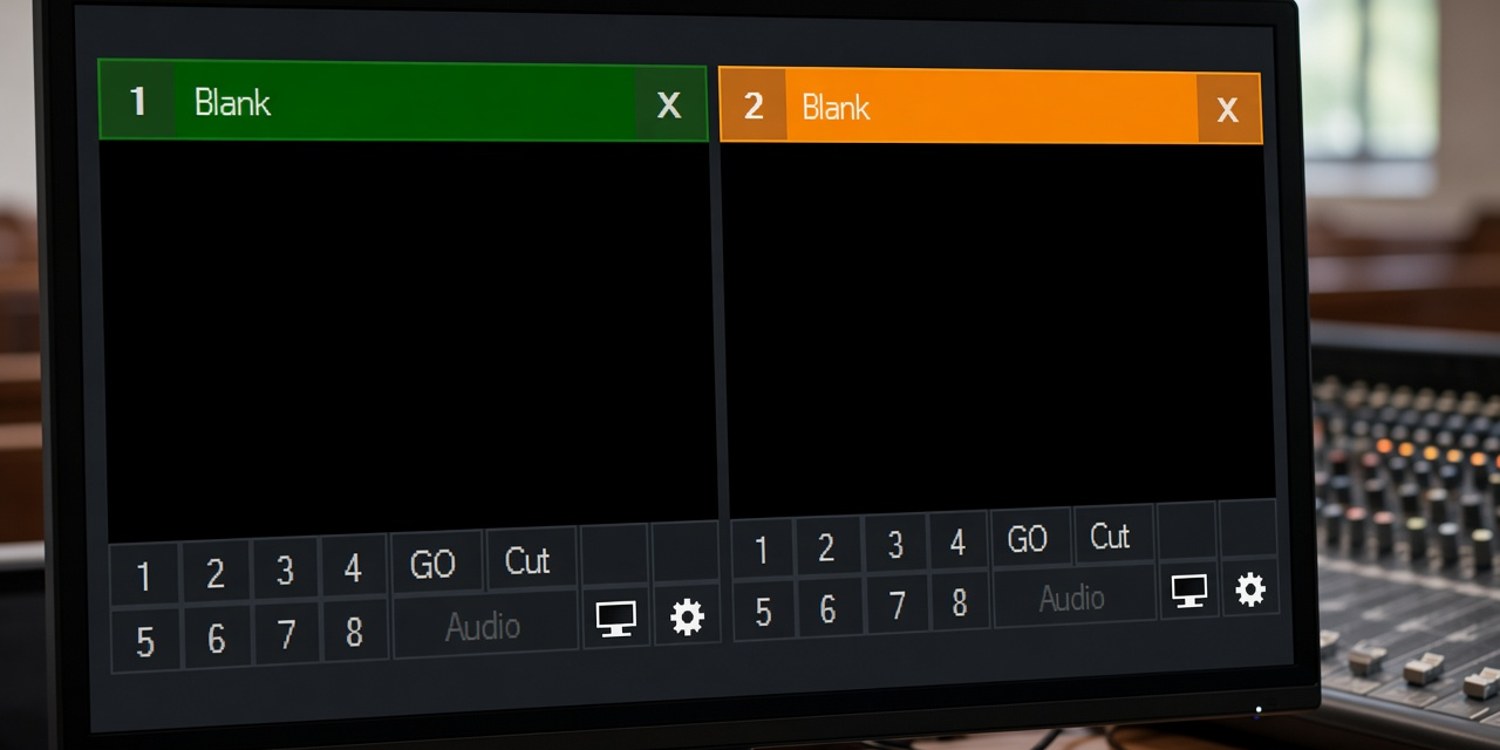
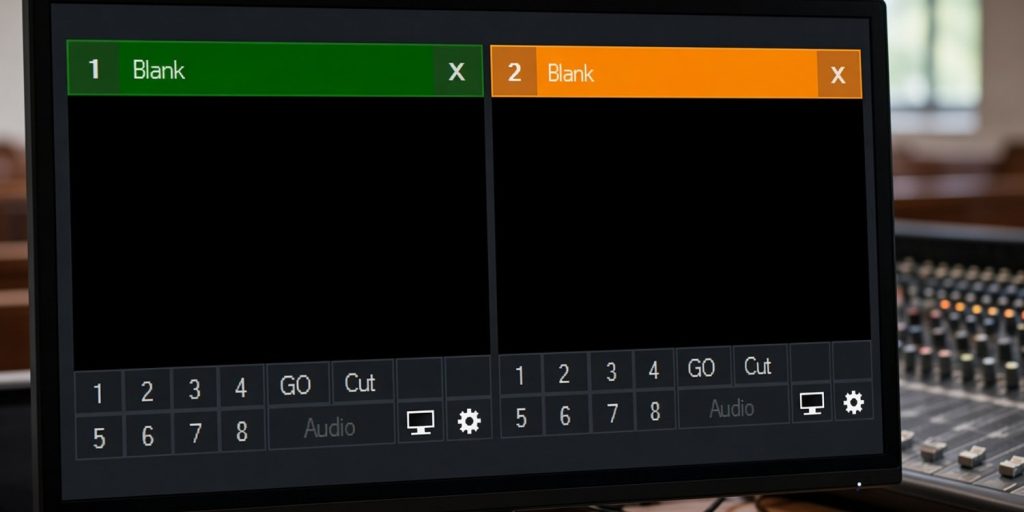
NDI is the quiet hero of many church streaming setups. Lyrics from the presentation computer, a camera down the cable, a second switcher feeding the first. When it works, nobody notices. When it does not, the input in vMix is black, or the source you need is not on the list at all.
The reason is almost always the network rather than vMix. This guide follows vMix's own checklist for blank NDI inputs, adds what the NDI documentation says about discovery and ports, and ends with the short order in which to check things on a Sunday morning.
What NDI needs to work
Two things have to happen. The computers have to find each other, and then video has to flow between them.
The NDI documentation explains that NDI finds sources automatically using mDNS, a multicast message that asks a machine to identify itself and then lets all receiving machines on the subnet update their lists. It works with very little set-up, unless the network is specifically configured not to allow mDNS. Because mDNS uses a link-local multicast address, its reach is limited to a single physical or logical network.
That one fact explains most failures: if the sender and receiver are not on the same network segment, or something blocks multicast, the receiver never sees the source.
vMix's four causes of a blank NDI input
vMix's knowledge base lists four reasons an NDI source can be blank.
1. The network location is not set to Private
On Windows, the network profile can be Public or Private. vMix says to set it to Private in the network settings for the connected card. The NDI documentation agrees: it says network locations should be Private for successful discovery and registration, and notes that Windows sets a new network to Public by default.
2. A firewall is blocking access
If you use a third-party firewall or security software, vMix says to allow the vMix application and any other NDI software full network access, on every computer that uses NDI. vMix manages the built-in Windows firewall and Windows Defender automatically, so this applies only to other software.
3. The computers are not on the same subnet
A blank input can happen if the source is on a different subnet to the vMix computer. vMix says the easiest fix is to connect all sources to the same router and let their addresses be assigned automatically, which is the default.
4. The computer is on more than one network
vMix says the computer running vMix should be connected to one network at a time. If it has both Ethernet and Wi-Fi, turn off the Wi-Fi.
If you cannot use automatic discovery
Some networks block multicast, or the devices sit on different subnets. The NDI documentation describes two ways around it.
- Manual discovery. Add the other machine by IP address in NDI's Access Manager. The documentation says manual discovery needs TCP port 5960 for the NDI messaging server, and ports starting at 5961 for the video streams.
- A Discovery Server. A small program that keeps a central list of NDI sources, so that mDNS is not needed and NDI can work entirely over unicast. NDI says this is helpful in large installations, when connecting devices between subnets, or when mDNS is blocked. Clients are pointed at it in Access Manager.
These are network jobs. If your church network is managed by someone else, give them this list rather than changing settings yourself.
Checks in a sensible order
| Step | What to check | Source |
|---|---|---|
| 1 | Is Wi-Fi on the vMix computer turned off? | vMix |
| 2 | Is the network profile set to Private on every NDI computer? | vMix, NDI |
| 3 | Are sender and receiver on the same router and subnet? | vMix, NDI |
| 4 | Is third-party security software allowing vMix and NDI software? | vMix |
| 5 | Are the NDI apps and drivers up to date? | Vizrt, NDI |
| 6 | If the source still does not appear, try adding it by IP address in Access Manager. | NDI |
The NDI troubleshooting guide from Vizrt, the company that now maintains NDI, gives the same core advice: devices need to be on the same network and subnet, and antivirus software and Windows Firewall are common causes of blocked NDI traffic.
Do not forget the load
Even when sources appear, NDI is demanding. vMix's overload guide lists NDI among the inputs that need a lot of processing, and suggests closing such inputs one at a time if the CPU is overloaded. If the picture appears but stutters, look at our guide to dropped frames and high render times in vMix.
Three typical Sunday scenarios
The four causes are easier to remember when you attach them to situations you have probably seen.
The laptop with two connections. Someone plugs a cable into the vMix laptop for a faster connection, and leaves Wi-Fi on. The computer is now on two networks, and NDI traffic can go the wrong way. This is vMix's fourth cause. Turn off Wi-Fi and look again.
The camera on the other router. The PTZ camera is plugged into a different switch or router from the vMix computer, perhaps one that was added later to reach the balcony. The two devices are on different subnets, so automatic discovery does not cross between them. This is vMix's third cause. Put both on the same router, or ask whoever manages the network about a Discovery Server.
The new computer. A volunteer installs vMix on a new laptop, and Windows labels the church network as Public. Nothing is wrong with vMix, and nothing is wrong with the cable. This is the first cause, and it is the cheapest to fix.
What not to do
A blank input is tempting to fix by turning things off. Do not switch off the Windows firewall completely. vMix says it manages the built-in Windows firewall and Windows Defender by itself. The one exception is third-party security software, which needs to be told to allow vMix and the other NDI software. Allowing the applications is safer than disabling the protection.
It is also worth changing one setting at a time and checking the source list after each change. If you change four things and the source appears, you will not know which change mattered, and you will have to repeat the process next time.
How Planify can help
NDI problems happen when the person who set it up is not there.
- Positions for the technical roles. Create positions such as switcher, presentation and sound, with a coordinator for the media department.
- Confirmation by tap. Volunteers confirm or decline on WhatsApp.
- Cover from the same position. If someone declines, Planify can ask colleagues who cover that position.
- Announcements. Send a short note to a position when something changes, for example when the network setup does.
Which features you get depends on your plan.
Read next: media team scheduling: why sound, cameras and slides can't be swapped.
FAQ
Why is my NDI input black in vMix?
vMix lists four causes: the network is set to Public instead of Private, a firewall is blocking access, the source is on a different subnet, or the computer is connected to more than one network at the same time.
Do I need Ethernet for NDI?
vMix says to disconnect Wi-Fi when the computer is also on Ethernet. It says nothing against Wi-Fi alone, but NDI sends a lot of data, so a wired network is the safer choice.
Which ports does NDI use?
The NDI documentation says manual discovery needs TCP 5960 for the messaging server, with ports from 5961 for streams. Automatic discovery uses mDNS multicast.
Can NDI work across subnets?
Not through automatic discovery. NDI suggests a Discovery Server or manual IP addresses in Access Manager.
Does vMix change the Windows firewall for NDI?
vMix says it manages the built-in Windows firewall and Windows Defender automatically. Third-party security software needs to be set up by hand.