



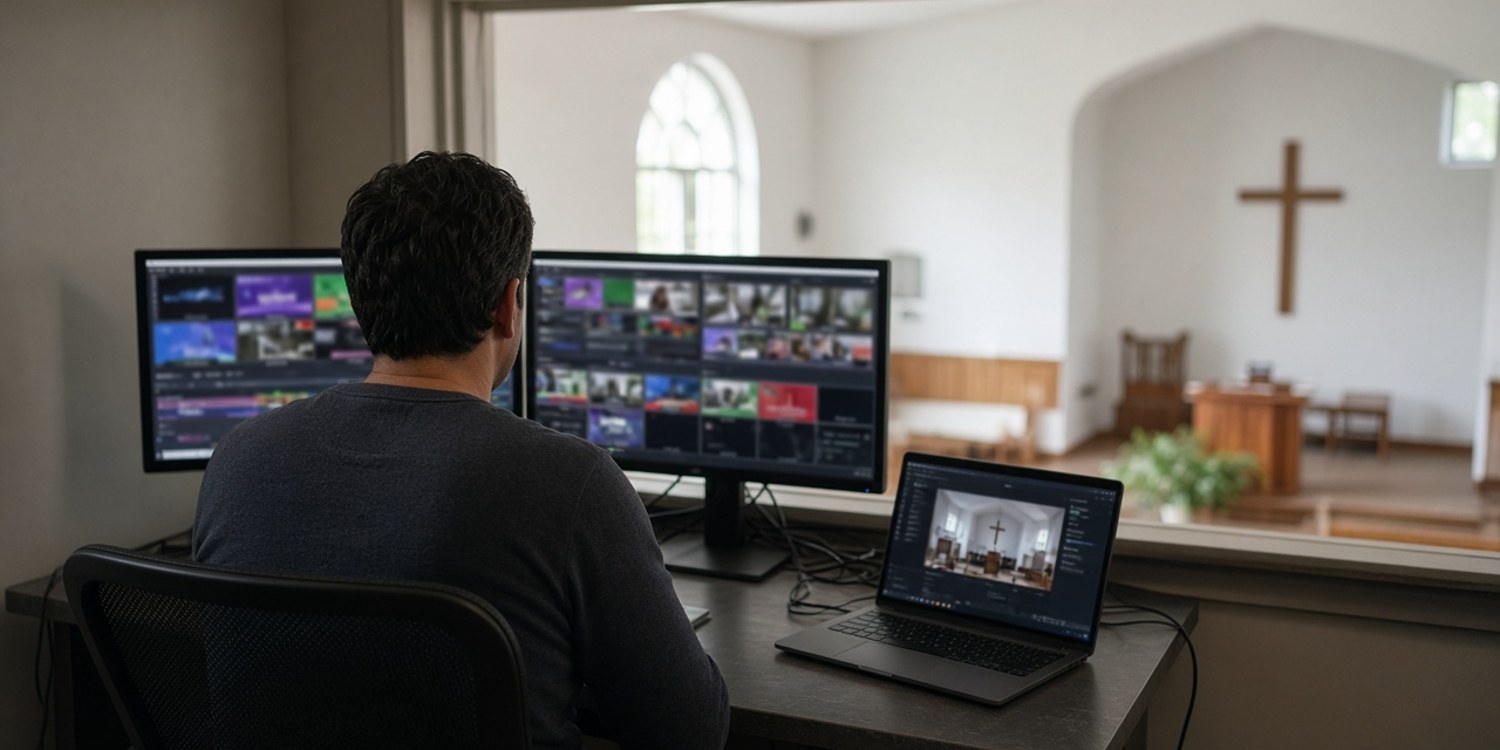
The service is live and the picture stutters. The preview freezes for half a second, the stream drops frames, and the volunteer at the switcher has no idea whether it is the computer, the cameras or the internet.
With vMix the answer is often already on the screen. The program shows numbers at the bottom of the window, and the vendor's own knowledge base explains what they mean. This guide turns that documentation into a short routine: read the numbers, decide whether the problem is the graphics card or the processor, and then work through the checks in a sensible order.
Start with the numbers
vMix shows a Render Time in milliseconds. It tells you how much of the graphics card's time is used to render each frame. vMix explains that if your production runs at 30 frames per second, each frame has about 33 ms, and a render time above that results in dropped frames. As a rule of thumb, vMix says that if the render time is consistently above 20 ms, the graphics card is likely at its limit.
Three other readings matter:
- Total CPU. vMix recommends keeping it at 70% or lower for best performance, and ideally at 60% or lower on average.
- CPU vMix. The share used by vMix itself, mostly for compressing audio and video for recording and streaming.
- GPU Mem. A cache used to move video data to the graphics card. It is normal for it to be high, but at 100% you start to see high render times, dropped frames and stutters.
You can switch on red warnings. In Settings, under the Performance tab, tick Show GPU / CPU alerts. vMix says the warnings do not mean the computer is damaged or overheating. They mean it is not quite fast enough for the current production.
Is it the graphics card or the processor?
The graphics card does all the input and output video processing. The processor mainly compresses video for recording and streaming. The two have different fixes, so find out which one is struggling.
- If Render Time is high, look at the graphics card side.
- If Total CPU is high, look at recording, streaming and heavy inputs.
- For recording, click the [i] button next to the recording setup. vMix says that window shows the number of dropped frames and the likely cause.
A quick test from vMix's overload guide: turn off recording and streaming. If the warning disappears, they were the cause. Then try closing inputs that need a lot of processing, such as NDI, Instant Replay and video clips, one at a time until the warning goes away.
The graphics card checklist
vMix's guide to high render times lists thirteen possible causes. These are the ones most likely to matter for a church computer.
| Cause | What vMix says to do |
|---|---|
| Slow graphics card | Integrated Intel graphics can only process a small number of inputs. Check vMix's reference systems page, and update the drivers. |
| NVIDIA overlay or GeForce Experience Share | Turn it off, or uninstall the software. It can substantially reduce performance. |
| Too many inputs | Reduce the number of inputs. Group many video clips into one List input. |
| Wrong slot | Install the graphics card in the fastest PCI Express slot, at least x8. Not in an x1 or x4 slot. |
| More than one graphics card | Remove the extra cards, and connect all screens to the one card, not the motherboard ports. |
| Driver interference | Run the LatencyMon program while vMix shows high render times. |
| Laptop on battery | NVIDIA graphics will not operate correctly on battery power. Keep the laptop plugged in. |
| NVIDIA Control Panel settings for vMix | Remove settings such as anti-aliasing for vmix64.exe. |
| Multiple displays | Disconnect all but one. If it improves, reconnect them one at a time. Refresh rates should be identical. |
| Memory channels | Check that the memory runs in dual channel, not single. |
| Other applications | Close everything else and restart vMix. |
| High CPU | Reduce inputs, recording and streaming quality. |
| High temperature | Check the card's temperature in Task Manager. vMix says consistent readings of 95 or more can cause performance problems. |
Two settings are worth knowing. High Input Performance Mode, under Settings and Performance, lets a card with 3 GB or more of memory handle more inputs without increasing render time. vMix says not to enable it if you have already turned on Resizable BAR. And a Low Latency Capture option adds load to the graphics card and should be unticked unless you need low latency.
The processor and streaming checklist
vMix's performance guide gives these steps for the CPU side.
- Set Windows to the High Performance power plan.
- Streaming: with an NVIDIA graphics card, tick Use Hardware Encoder in the streaming settings to reduce CPU use.
- Recording: with an NVIDIA card on Windows 10 or 11, try recording to MP4 with Use Hardware Encoder turned on.
- Match the settings to the cameras. Master frame rate and output size should match the cameras as closely as possible.
- Stream at a lower quality if CPU is the problem. vMix suggests 720p instead of 1080p as a test.
- Reduce the number of streaming destinations if you stream to several providers at once.
vMix also recommends a modern mid-range graphics card, such as an NVIDIA GeForce 3050 or higher, and lists Windows graphics settings and Resizable BAR as further options.
A short order of attack
- Open the statistics and note the numbers while the problem is happening.
- Turn off recording and streaming. See whether the problem goes away.
- Close inputs one at a time, starting with NDI, replay and video clips.
- Check the graphics card list, starting with overlay software, battery power and displays.
- Check the CPU list, starting with the power plan and hardware encoding.
- Only then buy hardware.
If the problem is dropped frames on the stream itself rather than in vMix's own numbers, the internet connection is the next suspect. Our guide to church live streaming settings covers bitrates and connection checks.
How Planify can help
A stream needs a person watching it, and that person has to be there.
- A position for the stream operator. Create positions such as switcher, camera and sound in your media department, each with a coordinator and a minimum and maximum number of people.
- Confirmation by tap. Volunteers confirm or decline on WhatsApp, so you know early if the person who understands the computer is out.
- Cover from the same position. If someone declines, Planify can ask colleagues who cover that position.
- A monthly rota. The planner proposes assignments with attention to fairness and to unavailable periods.
Which features you get depends on your plan.
Read next: media team scheduling: why sound, cameras and slides can't be swapped.
FAQ
What is a good Render Time in vMix?
vMix says that if it is consistently above 20 ms, the graphics card is likely at its limit. For a 30 fps production, anything above about 33 ms results in dropped frames.
How high can CPU usage be?
vMix recommends keeping total CPU at 70% or lower, and ideally at 60% or lower on average.
Does vMix recommend a specific graphics card?
vMix recommends a modern mid-range card such as an NVIDIA GeForce 3050 or higher, and says integrated graphics can process only a small number of inputs.
Why does vMix stutter on battery power?
vMix says NVIDIA graphics will not operate correctly on a laptop running on battery power, which results in high render times. Keep it plugged in.
Should I stream at 720p or 1080p?
If CPU is the bottleneck, vMix suggests trying 720p instead of 1080p to see whether it helps.