



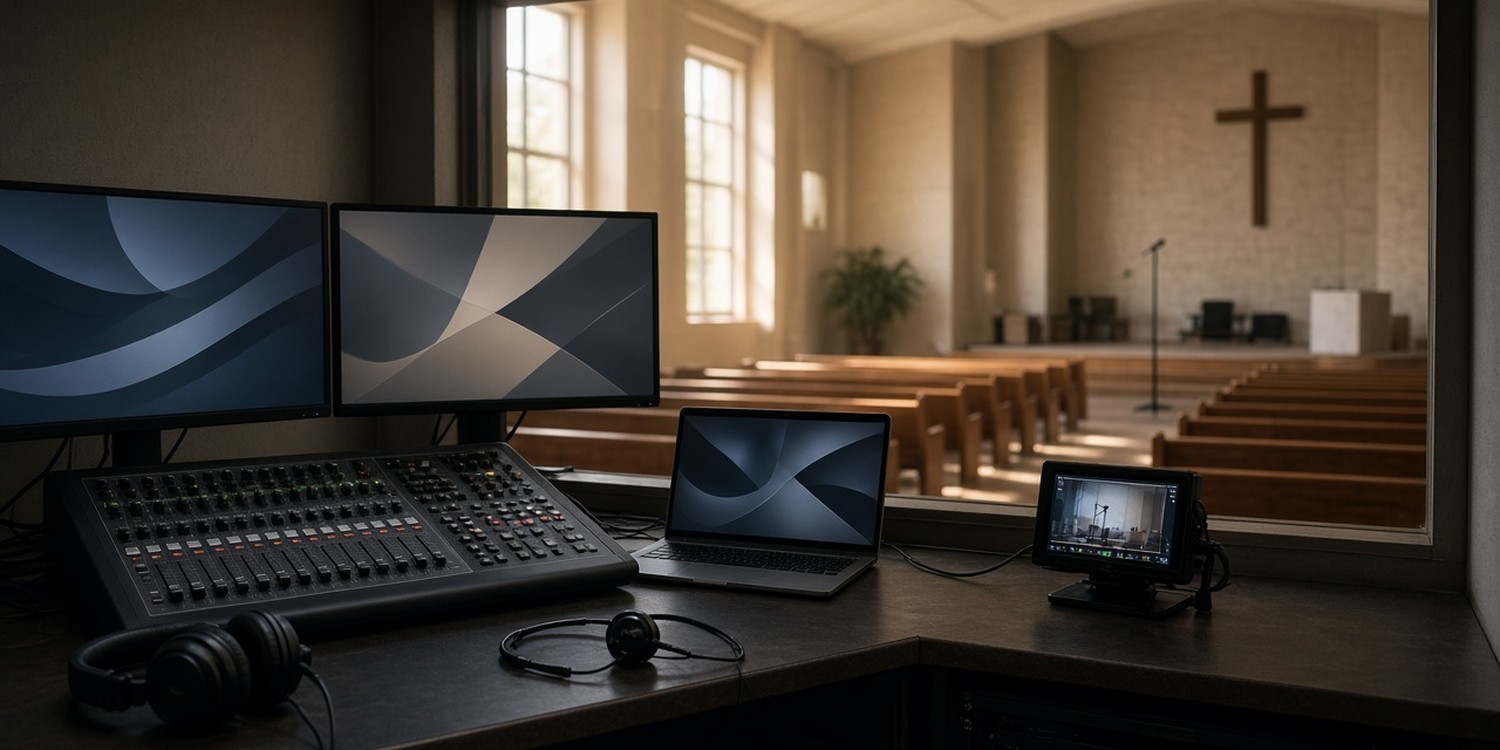
The media booth is the one place in a church where one missed Sunday can stop the whole service. No sound, no lyrics on screen, no camera feed to the stream.
Most booths run on volunteers who learned by trial and error. This guide breaks the booth into its four seats, with the checks that matter for each.
Key takeaways
- A booth works when each seat has one owner: sound, cameras, projection and stream.
- Set audio gain at full performance level, then balance with faders. Check the stream audio separately from the room.
- Streaming a service with lyrics needs a streaming license, not only the base church license (CCLI's rule in the US).
- Train a backup for every seat, and write a one-page guide for each.
The four seats in a church media booth
Larger churches add a director, a lighting operator and a stage manager. A small church can run the booth with four people, or fewer when one person covers two seats.
| Seat | Owns | First thing to check |
|---|---|---|
| Sound | Room mix and stream mix | Every input shows signal; no channel muted by mistake |
| Cameras | Framing and consistency | Batteries, focus, exposure, white balance |
| Projection | Lyrics, sermon slides, videos | The full service order, clicked through |
| Stream | Encoder and connection | Stream preview and audio meters |
If you have only two or three people, give each one a seat and make the owner of the stream also the person who watches the preview.
Sound: the room and the stream are two mixes
Sound problems usually start before the first song. The most common cause is gain.
Set gain first, at the real volume. Ask each singer and player to perform at full worship intensity during soundcheck, not a quiet "check one-two". Set the input gain so the signal is strong and does not clip. Then keep faders near their normal position and balance the mix with them.
Power up in the right order. One church sound guide suggests: outboard gear and stage racks first, the console second, amplifiers or powered speakers last. This avoids pops through the speakers.
Check the basics every week.
- All speakers are active
- Stage boxes are connected
- Wireless microphones have fresh batteries
- No channel is muted by accident
- Every input shows signal
Check the stream audio separately. The mix that sounds right in the room often sounds wrong online. Put on headphones and listen to the stream feed. Check vocal clarity, balance, clipping and missing channels.
If your church is choosing a console, see Behringer X32 vs WING.
Cameras: consistency beats clever shots
A camera operator's job is to frame what the director or pastor asks for, and to stay consistent.
Before the service:
- Charge or swap batteries
- Set focus on the platform
- Match exposure and white balance across all cameras
- Check each camera in the stream preview
If you use a director and headsets, keep the talk short, clear and calm. A simple pattern works, such as "Camera 2 ready" followed by "Take 2".
For a one-camera setup, pick a wide shot and leave it. Slow, small moves look better than frequent ones.
Projection: click through the whole service first
The projection operator controls what the congregation reads. A missing slide or wrong song arrangement stops the room.
Before service, click through the whole service order from start to finish.
- Are all songs and videos imported?
- Is the right song arrangement selected?
- Do transitions work?
- Do all outputs show what you expect (main screens, stage screens, stream overlays)?
One church's ProPresenter guide notes a trap. Changing the audience look does not change the stage layout. If you trigger one without the other, the people on stage can lose the information they need. Check both.
Keep text large and short. Fewer lines per slide are easier to read from the back row.
Streaming settings that YouTube recommends
If you stream to YouTube, use the encoder values the platform publishes.
| Setting | YouTube recommendation |
|---|---|
| Protocol | RTMP or RTMPS |
| Video codec | H.264 (H.265 and AV1 also supported) |
| 1080p at 30 fps, H.264 | 14 Mbps recommended, 5 Mbps minimum |
| 1080p at 60 fps, H.264 | 17 Mbps recommended, 6 Mbps minimum |
| Bitrate mode | CBR |
| Keyframe interval | 2 seconds (do not exceed 4) |
| Audio | AAC or MP3, 128 Kbps and 44.1 kHz for stereo |
Your upload speed must sustain the video bitrate plus the audio. Test the stream before Sunday, not during the service. If the connection struggles, lower the resolution or frame rate.
Lyrics, music and licenses
Showing lyrics in the room and streaming a service are different rights.
In the US, CCLI says the Church Copyright License covers projecting song lyrics from a computer. Streaming a service that includes those songs requires CCLI's Streaming License. With it, lyrics can appear on screen in the stream, as long as they are not posted separately on the web or social page that carries the stream. Playing recordings or multitracks in the stream needs the Streaming Plus License.
Outside the US, licensing bodies and rules differ. Check your local one before you stream.
A 30-minute pre-service checklist
- Power up in order and confirm the speakers work.
- Run soundcheck at full performance level.
- Check wireless batteries and every input.
- Click through the full service order in the projection software.
- Check each camera's framing, focus and exposure.
- Confirm the stream is live in preview and the audio meters move.
- Listen to the stream mix through headphones.
- Confirm who is in each seat and who is the backup.
Keep this on one printed page next to the console.
How to train volunteers for each seat
Most booth volunteers learn by being handed a seat on Sunday morning. You can do better with three habits:
- Shadow first. A new person sits beside the current operator for a few services.
- One guide per seat. One page with the steps and the first thing to check.
- Always a backup. Every seat has a second trained person.
Who sits in the booth on Sunday?
The best checklist does not help if a seat is empty.
In Planify, each seat in a service (sound, camera, projection) is its own position, with its own volunteer. Each person gets their assignment on WhatsApp and confirms or declines with one tap, with no app to install. If someone declines, you can ask people who cover that same position, without touching the other seats.
For the wider weekly rhythm, read how to organize Sunday volunteer teams without chat chaos.
FAQ
How many people do you need in a church media booth?
A small church can run it with two to four people, depending on whether you stream. Larger churches add a director, a lighting operator and a stage manager.
What should the sound tech check first?
Gain, set at the volume people will actually perform at, with no clipping. Then check that every input shows signal and no channel is muted.
Do we need a license to stream our service?
If the service includes copyrighted songs, yes. In the US, CCLI's Streaming License extends the base church license to online streaming. Check the rules in your own country.